Your first conversation
Start or resume work, with screenshots of projects, conversations, and the talking controls.
On this page
Choose where to work on screen, then talk or type in that conversation. Starting a session is a short sequence of large buttons. Continuing one takes you straight back to its original project and agent.
Need to connect first? Follow Connect your computer, the illustrated QR setup guide.
The screenshots below are real captures of the shared mobile interface in a browser at iPhone size, using disposable demo computers. The demo label and simulated replies are intentional. On a real host, the supported production agent is Claude. These captures do not establish physical microphone or locked-screen performance.
1. New session or continue?#
After connecting, the home screen asks What would you like to do?
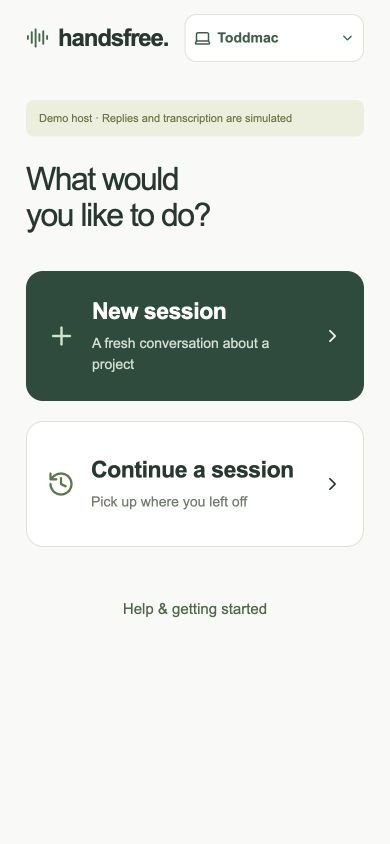
The computer picker at the top shows your active connection, such as Toddmac. Tap it to switch saved computers, Add computer… by scanning a code, or open Manage connections…. If disconnected, it says Connect computer. Help & getting started opens the hosted support site in your browser, leaving the app available.
Choose New session to follow steps 2–4. If you already have work to return to, jump to Continue a saved conversation.
Loading diagram…
View diagram as text
flowchart TD
    Home[What would you like to do?] --> New[New session]
    Home --> Recent[Continue a session]
    New --> Host[Choose computer - skip if one]
    Host --> Project[Choose project - skip if one]
    Project --> Provider[Choose agent - skip if one]
    Provider --> Ready[Ready to talk]
    Recent --> Saved[Pick a recent conversation]
    Saved --> Ready
    Ready --> Talk[Tap Start talking]
2. Choose where the work happens#
Computer: only if you have more than one#
If you have paired one computer, Handsfree connects to it and skips this screen. With several computers, tap the one holding the project you want.
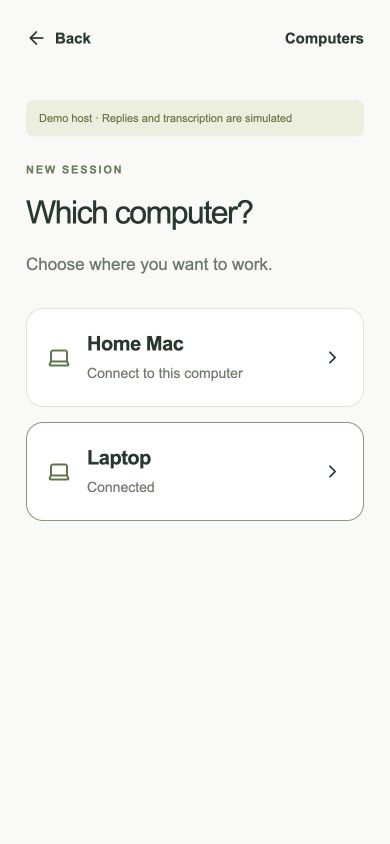
The app waits for that computer to connect. It does not silently move your work to another computer if the selected one is offline.
Project: choose a named folder#
Tap the project card. A single available project skips this screen too.
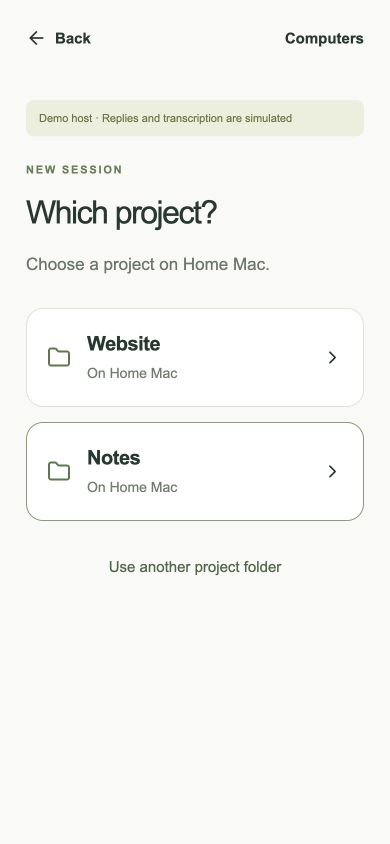
Set up named choices from Projects in Handsfree on the computer. The computer can add folders with the native picker, rename them, and choose their order on the phone. Without any setup, the host starts with its default folder and accessible folders from saved sessions. See Offer named projects on the phone.
Use another project folder is the advanced fallback: enter an existing absolute path on that computer, inside its configured allowed roots. It does not create or clone a repository.
Agent: only if there is a choice#
Handsfree offers only ready agents that can create a session. One ready agent skips the picker. The production host currently supports Claude; Codex will not appear until its production integration is available. A demo host shows Demo (simulated) instead.
It is normal to go straight from New session to the next screen when the computer, project and agent each have one option.
3. Check the destination before listening#
The Ready to talk screen shows the project, computer and agent together. Check all three before sending a request. Use Back to revisit your choices.
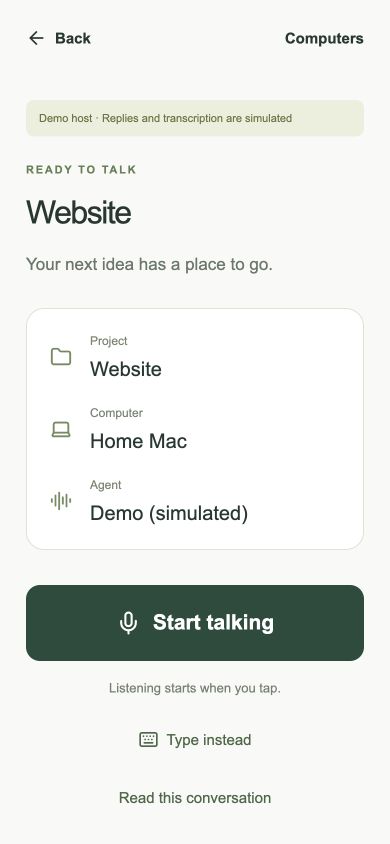
Creating or resuming a session does not automatically start the microphone. The app also offers Type instead and Read this conversation.
A session remembers its project folder and agent. Two sessions in the same folder have separate conversations but share the same files and Git checkout; a new session does not create a worktree or backup.
4. Try a simple request#
For the first connection test, tap Type instead and send a small request such as:
Explain this project. Please do not change any files.
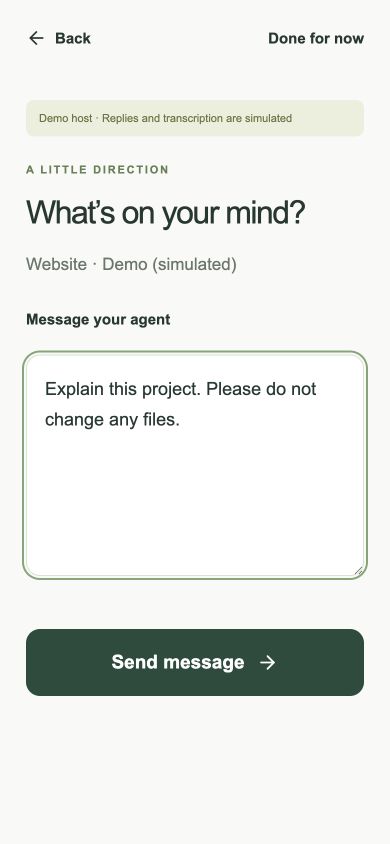
Tap Send message. You should see WAITING on a lavender background, then hear the answer. Delivery confirmations are available under Conversation → Delivery log. The example below uses the demo host; your real host should return a real agent answer.
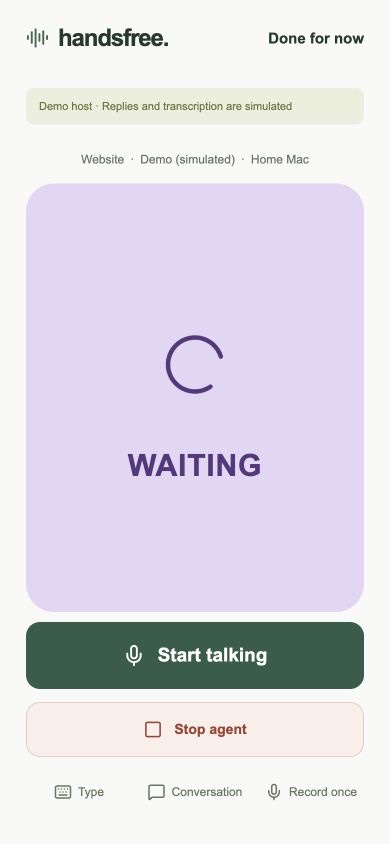
For continuous voice, tap Start talking, allow Microphone and Speech Recognition access if prompted, speak, then pause. A pause ends the spoken turn. The installed iPhone app transcribes on device, sends text to the selected agent, and speaks returned text with the iPhone voice. The browser companion uses the optional host speech services instead. Follow-up requests can queue while the agent is busy. On iPhone, listening pauses while its voice is speaking so it does not hear itself; use Stop speaking to talk sooner.
For one recorded message, use Record once on the paused talking screen, speak, then tap Finish recording. You tap to start and finish; you do not hold the button down.
Recognized speech is sent automatically. There is no transcript-approval screen before the agent acts. If an important instruction was misheard, inspect the conversation and use Stop agent if necessary before correcting it.
Follow the voice lifecycle#
The main screen is for talking and listening. A single small line identifies the project, agent and computer. The middle of the screen changes color with the current voice state, showing only a large icon and status label. Conversation holds your requests and the agent’s replies.
| State | Color | What is happening |
|---|---|---|
| LISTENING | Mint | The microphone is ready for your next thought. |
| CAPTURING | Teal | The app detects speech. Keep talking; a short pause finishes the message. |
| CAPTURED | Amber | Speech recognition is turning the finished recording into text. |
| SENDING | Sky blue | The app is waiting for the computer to confirm it received your text. |
| WAITING | Lavender | The agent is working on the request. |
| QUEUED | Orange | The request is waiting behind earlier work. |
| SPEAKING | Indigo | A reply is playing aloud. Listening resumes afterward if continuous listening is on. |
| PAUSED | Gray | Tap Start talking to resume. |
The icon and word identify the state as well as its color. Capture and speaking have a gentle animation; reduced-motion settings are respected. Quick stages may pass quickly, and a new capture can overlap earlier work.
Check delivery confirmations#
Open Conversation, then expand Delivery log. It shows when this device observed the computer accepting your messages, with the most recent first. Finishing a recording alone does not create a confirmation.
The log is kept locally on this device and grouped by computer and session. It stores timestamps and session identifiers, without message text or credentials. It retains up to 200 confirmations across sessions and shows the most recent 50 for the current conversation. If local storage is unavailable, receipts remain available in memory while the interface stays open.
If you see DELIVERY UNCONFIRMED, inspect the conversation before repeating a request: the computer may already have it. CONNECTION LOST has its own red panel.
Type, Conversation, and Record once share the small secondary row. Pause continuous listening before using Record once. Stop speaking and Replay reply remain available without opening the transcript.
Listening, sound and stopping work#
| What you want | Control | What happens |
|---|---|---|
| Start continuous voice | Start talking | The app begins listening to spoken turns. |
| Stop listening for more requests | Pause listening | Capture stops. Already accepted agent work can continue. |
| Finish and send one recording | Finish recording | The recording is transcribed and submitted. |
| Silence the current spoken answer | Stop speaking | Playback stops locally; the agent can keep working. |
| Hear the latest answer again | Replay reply | Replays the latest available reply in this conversation. |
| Cancel active work | Stop agent | Requests interruption and clears that session's queue. Completed edits remain. |
| Remove a waiting request | Expand messages queued, then use its remove button | Cancels that queued request. |
| Put the phone down | Done for now | Stops local listening and playback, discards unfinished recording, and returns home. Accepted work continues. |
Saying “stop” is ordinary spoken input. Use the visible Stop agent control when you want cancellation. Silence after quieting playback does not prove the agent stopped; check its working status.
Continue a saved conversation#
From home, tap Continue a session, then select the recent conversation you want. You will return to Ready to talk with its original project and agent; you do not repeat those choices.
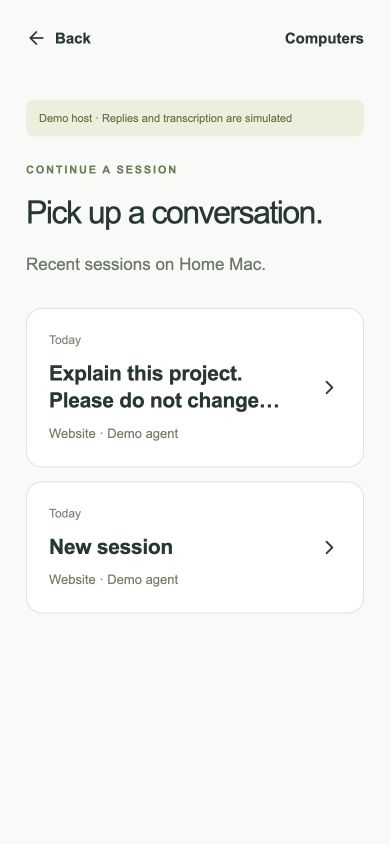
The list belongs to the connected computer. With multiple saved computers, tap Choose another computer to see the other computer's sessions. It is not a combined list across every host.
These are Handsfree conversations. Pairing does not automatically import every Claude terminal conversation or task from the Codex desktop app. The big-picture guide explains the distinction.
To read previous requests and replies, tap Read this conversation from the ready screen, or Conversation from the talking screen.
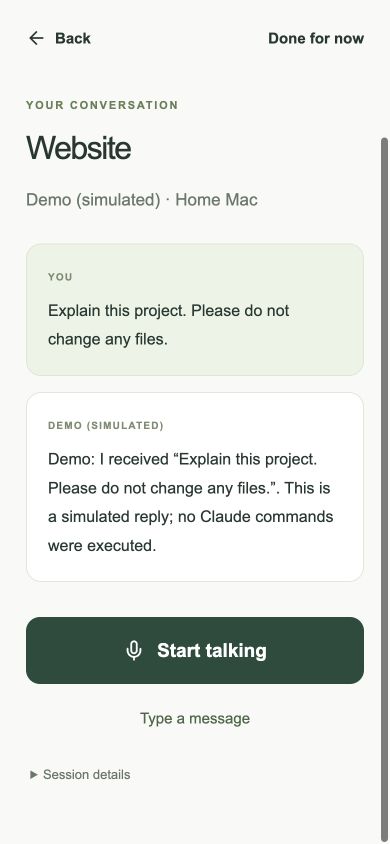
To change projects, use Done for now, then start or continue a session for the other project. Listening turns off when the session changes; turn it on deliberately in the new session.
When you leave and come back#
The host retains accepted work and conversation history. Closing the interface or losing the phone connection does not itself cancel that work. Done for now also leaves accepted work running; the app says so while a turn is active.
After a dropped connection, wait for reconnection, inspect the conversation, and tap Start talking when ready. Replayed history is not automatically spoken again. If a request has an unknown outcome, check the project files and conversation before sending it again.
The native iPhone app saves its pairing. The browser companion needs to stay open and in the foreground for voice; reloading its app page requires a fresh pairing code. Help opens separately in the browser so you can return to the still-paired app tab.
You can review the agent's actual file changes later in your editor or Git on the computer. Keep the app open while talking: it keeps the screen awake. Switching apps or locking the phone pauses listening and discards unfinished speech; tap Start talking when you return. Recognition quality needs a check on your actual iPhone.
If the first request does not work#
- Cannot connect: return to the connection troubleshooting steps.
- No projects or no ready agent: finish the computer-side configuration in the setup guide.
- Text works but voice does not: check Microphone and Speech Recognition permissions on iPhone. Browser voice needs the host transcription service.
- Reply text appears but there is no sound: check the phone’s volume/output route. The iPhone speaks locally; browser voice can also depend on the host speech service.
- The wrong project is shown: go back or return home and choose the correct session before sending work.
A successful first voice test means you have verified the private connection, a real agent reply, transcription and audible playback on your phone.